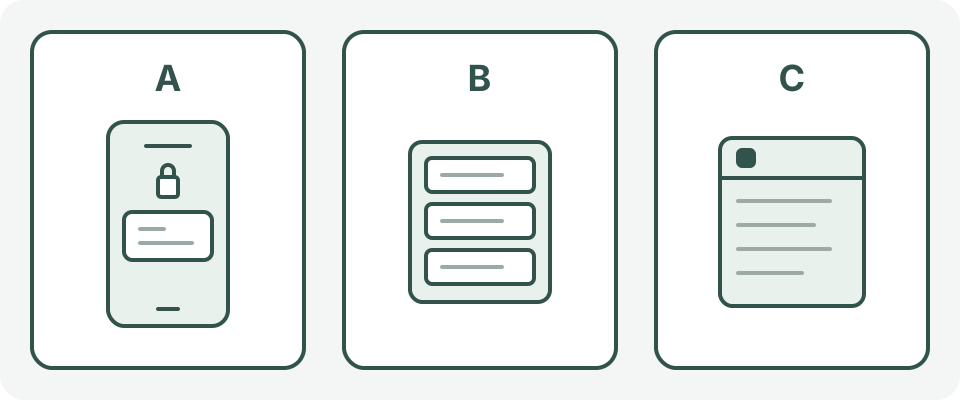
A setting for one surface is not a delete command for the others. This is a conceptual diagram, not an exact phone interface.
- A · Lock Screen preview
Check the title, text and app name visible before unlocking.
- B · Notification list
Check Notification Centre, or the Android drawer and history if available.
- C · App contents
Check the saved reminder and whether its list is shared. A notification setting does not delete a provider’s records.
Keep the instruction; leave out the personal history
A label such as ‘Evening check’ can be enough if you know it means opening your plan. ‘Pause and review’ is more useful than a mysterious code you will forget. Choose wording that suits you; it need not describe whether you have quit, smoked again or used treatment.
If the app lets you edit reminders, check both the title and any notes it includes in alerts. Do not assume changing the title also changes an old delivered notification. Before saving, check which list or calendar you are using; do not put a private plan in a list you know is shared.
On iPhone, change one app’s previews
Open Settings → Notifications, select the app under Notification Style, then open Show Previews if offered. ‘When Unlocked’ and ‘Never’ are different choices: the former allows previews when unlocked; the latter does not show previews. Some apps do not support this option. Note the current choice before changing it so you can restore it in the same menu.
The app’s notification settings also separate Lock Screen, Notification Centre and banners. Decide whether you want less text or no alert at a particular location; those are different requests. Notification Centre keeps a notification history. Clearing a delivered alert is separate from changing what the app will send next; it is not a way to edit the saved reminder.
On Android, silent is still visible
Google’s route for app controls is Settings → Notifications → App notifications, then the relevant app. Menus vary by device and version. Look for that app’s Lock Screen content controls; where offered, hide sensitive content or stop its Lock Screen notifications. Check whether an option applies to one app or all apps before selecting it. Keep the previous setting so you can put it back.
A ‘Silent’ notification can still be seen when you swipe down. Some devices also have notification history, including recently dismissed notifications and the day’s notifications; others do not. Do not enable a new history feature just to test privacy, and do not treat dismissing a card as proof that no record remains.
Test with harmless text, not your smoking details
On a device and account you may manage, while safely stationary, use a temporary ‘Test plan’ reminder if your chosen app supports it. Check the locked screen without deliberately unlocking it, then the notification list and the app itself. If text is still too revealing, change one setting and repeat. Do not upload screenshots or personal reminder text for this check.
Afterward remove only your temporary test entry, if you no longer need it. Restore a setting if it hides useful reminders, or choose to open your plan at a set time without notifications. Check other screens you actually use separately, such as a watch or screen-sharing session. Leave emergency, security and care-related alerts alone; do not bypass workplace controls or change someone else’s device.
What to keep in mind
Sources
The central claims on this page were checked against the sources below.
- Apple Support: Change notification settings on iPhone
Sources checked: 2026-10-03
- Google Android Help: Control notifications on Android
Sources checked: 2026-10-03
- Apple Support: Use notifications on your iPhone or iPad
Sources checked: 2026-10-03
These are display and wording choices, not a guarantee of confidentiality or a quitting outcome. If sharing a device makes a private reminder unsafe, choose a different way to keep your plan rather than relying on neutral words alone.